Ask Your Favorite AI
Copy this article in AI-ready Markdown for ChatGPT, Claude, Gemini, and more.
Connect WPSyncSheets for WooCommerce with Google Sheets
WPSyncSheets connects your WooCommerce store with Google Sheets and enables automatic data synchronization between your website and Google Sheets.
To configure your Google Sheets connection, go to:
WPSyncSheets → For WooCommerce → Google API Settings
WPSyncSheets provides two ways to connect your Google account with Google Sheets.
Google Sheets Connection Methods
1. One-Click Connect — Recommended
One-Click Connect is the easiest and recommended method for most users.
With this option, you can connect your Google account directly to WPSyncSheets without creating a Google Cloud Project, Client ID, or Client Secret.
Your data remains secure and under your control. WPSyncSheets only uses the permissions required to connect and sync your WooCommerce data with Google Sheets.
2. Manual Connection
The Manual Connection option is available for users who prefer to use their own Google Cloud credentials.
This method requires you to:
1. Create a Google Cloud Project
2. Enable the required Google APIs
3. Create OAuth credentials
4. Generate a Client ID and Client Secret
5. Add the credentials to WPSyncSheets
Option 1: One-Click Connect
We recommend using One-Click Connect for most users because it provides the simplest way to connect WPSyncSheets with Google Sheets.
You do not need to manually configure Google Cloud or create OAuth credentials.
Step 1: Open Google API Settings
From your WordPress dashboard, go to:
WPSyncSheets → For WooCommerce → Google API Settings

Step 2: Connect with Google
Click the Connect with Google button.

Step 3: Select Your Google Account
Select the Google account that you want to connect with WPSyncSheets.

Step 4: Allow Google Permissions
Google will display the permissions required by WPSyncSheets.
Review the requested permissions and click Continue to authorize the connection.

Step 5: Connection Successful
After successful authorization, Google will automatically redirect you back to WPSyncSheets.

Your Google account is now successfully connected to WPSyncSheets.
You can continue configuring your WooCommerce settings, spreadsheets, sheet headers, and synchronization options.
Recommended Connection Method
For most users, we recommend using One-Click Connect because it does not require any Google Cloud configuration.
Use the Manual Connection method only if you specifically want to connect WPSyncSheets using your own Google Cloud Project and OAuth credentials.
Option 2: Manual Connection
If you prefer to use your own Google Cloud credentials, select Manual Connection.
How to Create a New Client ID and Client Secret:
Go to WPSyncSheets > For WooCommerce > Google API Settings
For guidance on creating Google API settings, please refer to the Video Tutorial
Step 1
Log in to your Google account and open the Google Cloud Console by clicking here.
Step 2
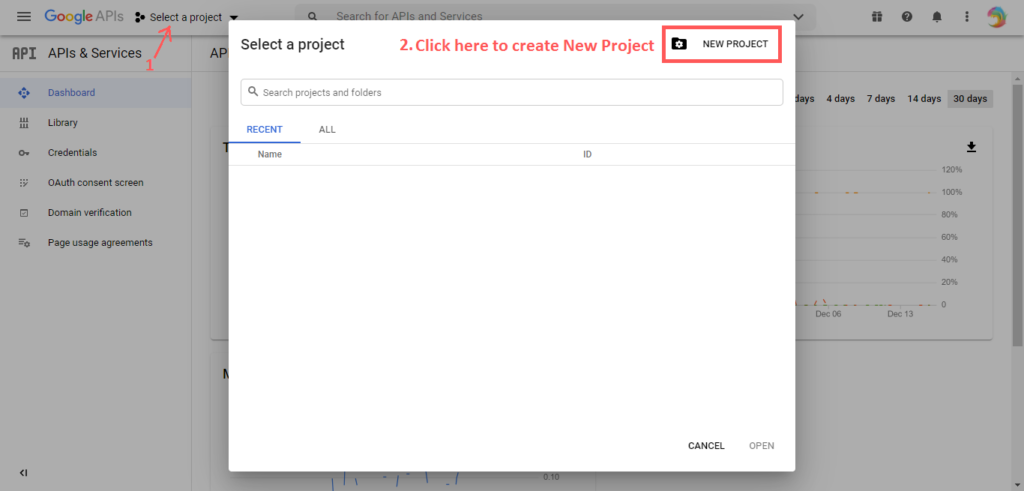
Create a New Project as shown below.
Step 3
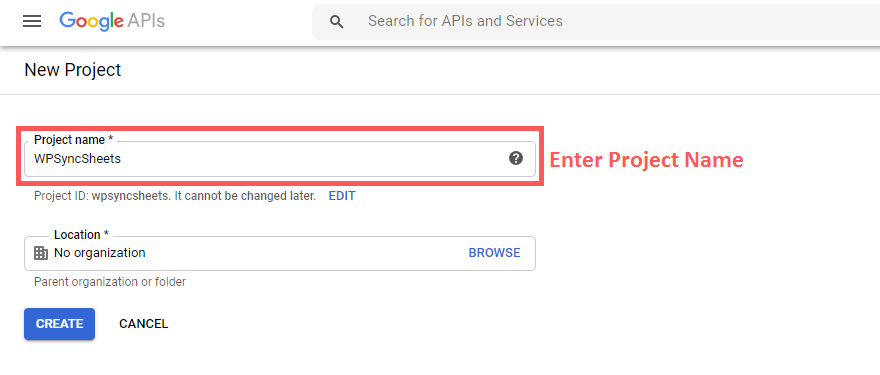
To create a new project, enter your preferred Project Name and click CREATE.
Step 4
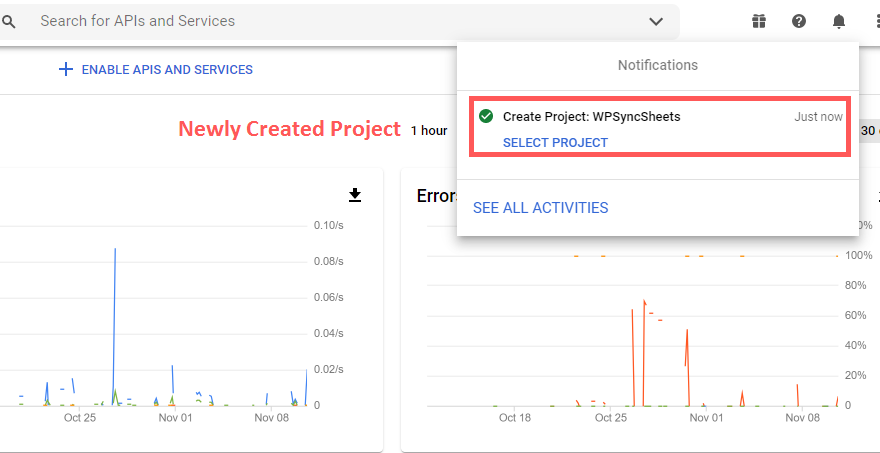
Once the project is created, click the Project Selector in the top navigation bar and select your newly created project.

Step 5
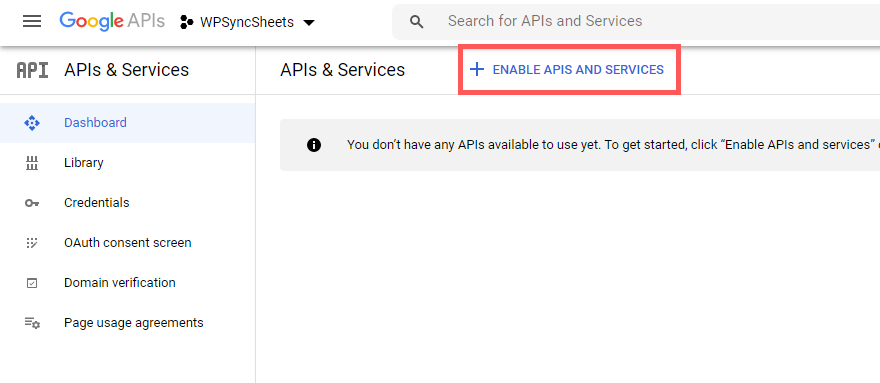
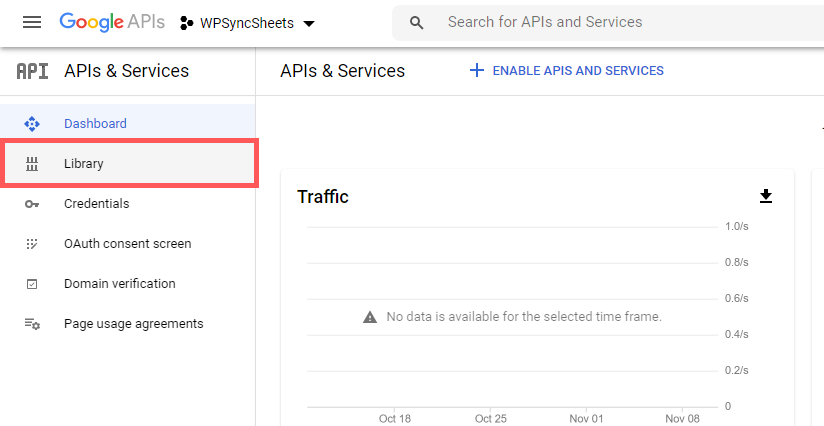
In the left sidebar, navigate to APIs & Services > Library.

Step 6
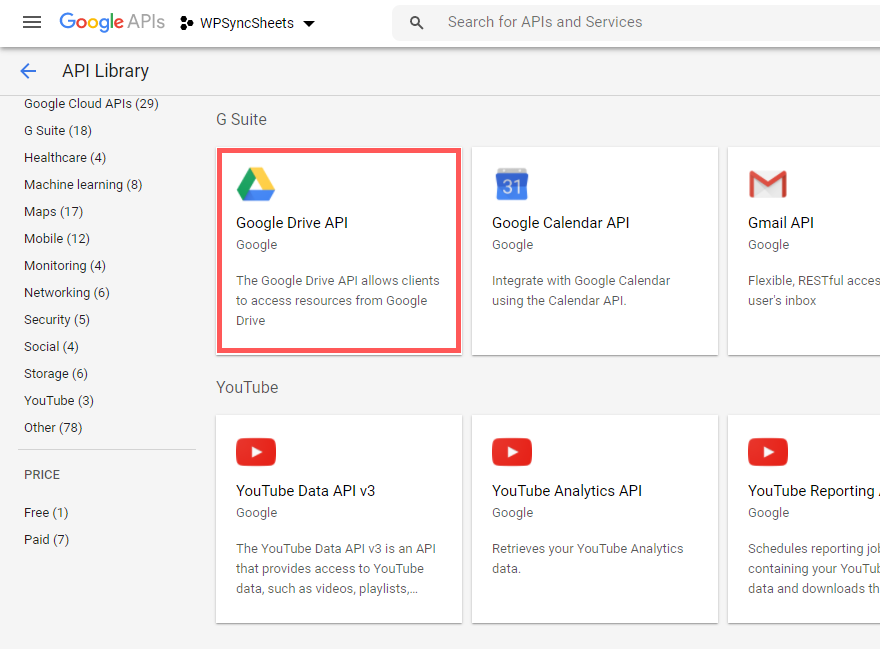
In the API Library, search for Google Drive API and select it.

Step 7
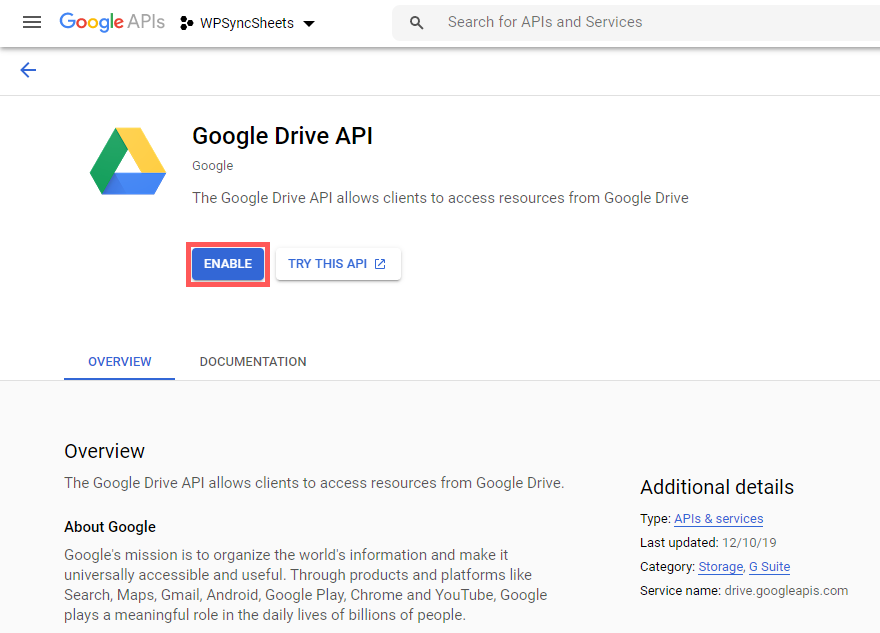
Click on Enable.

Step 8
Navigate to APIs & Services > Library.

Step 9
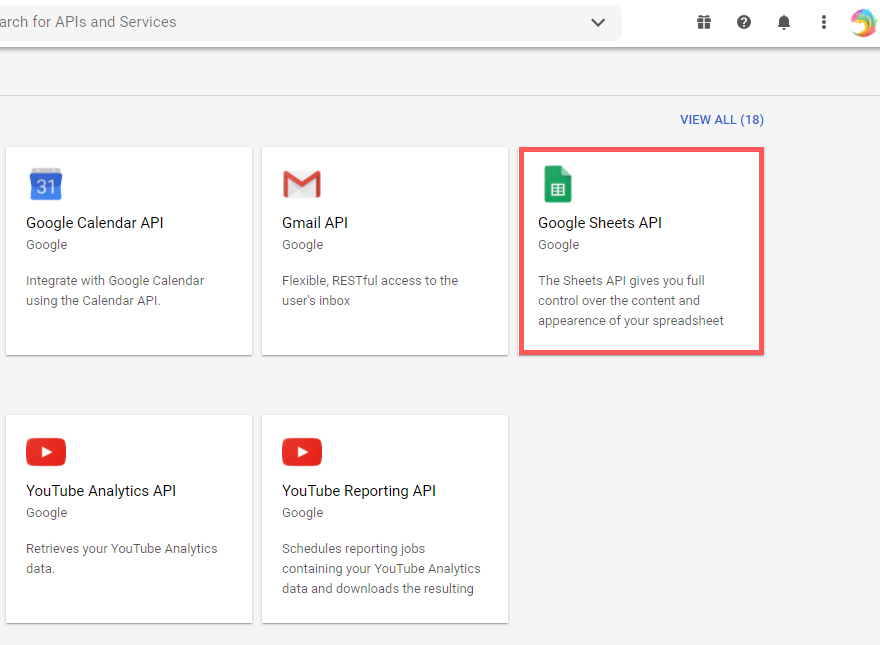
Search for and select Google Sheets API.

Step 10
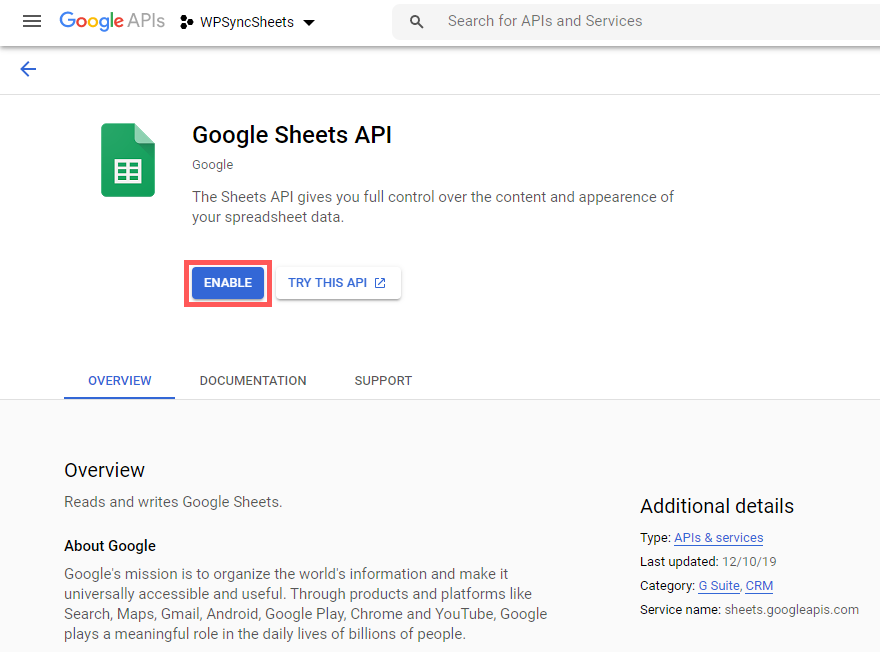
Click on Enable

Step 11
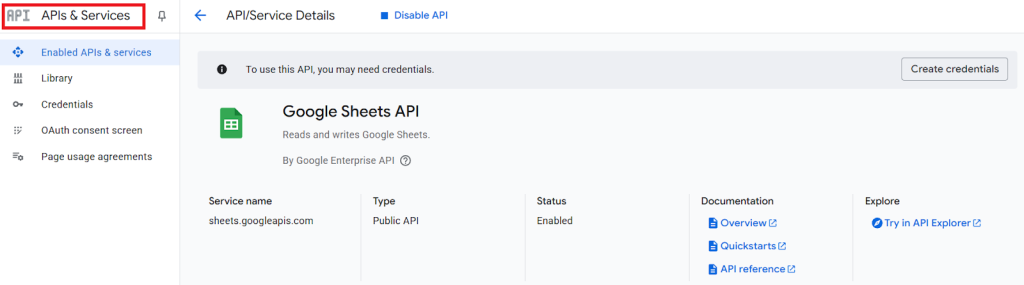
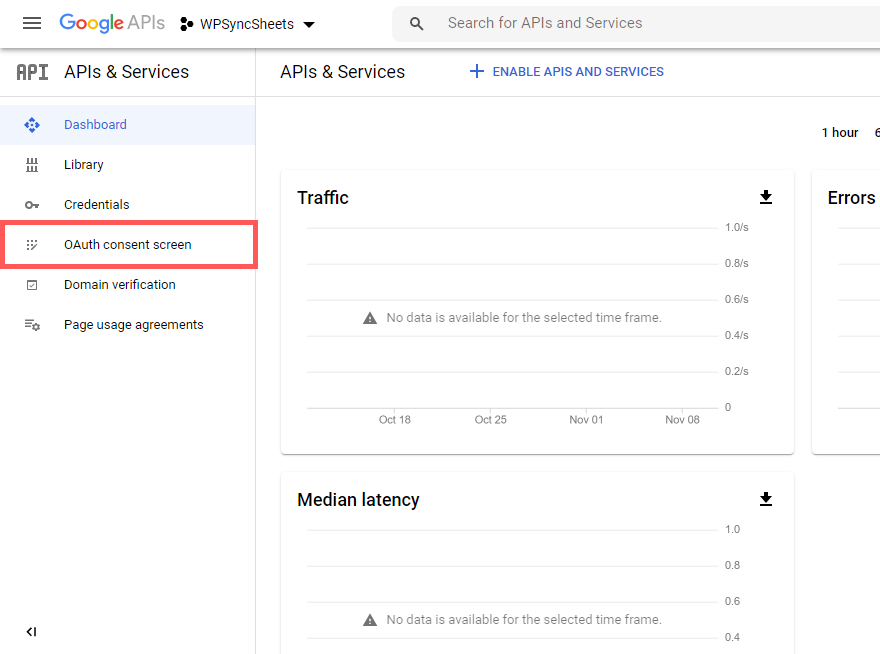
Navigate to APIs & Services > OAuth consent screen.
Step 12
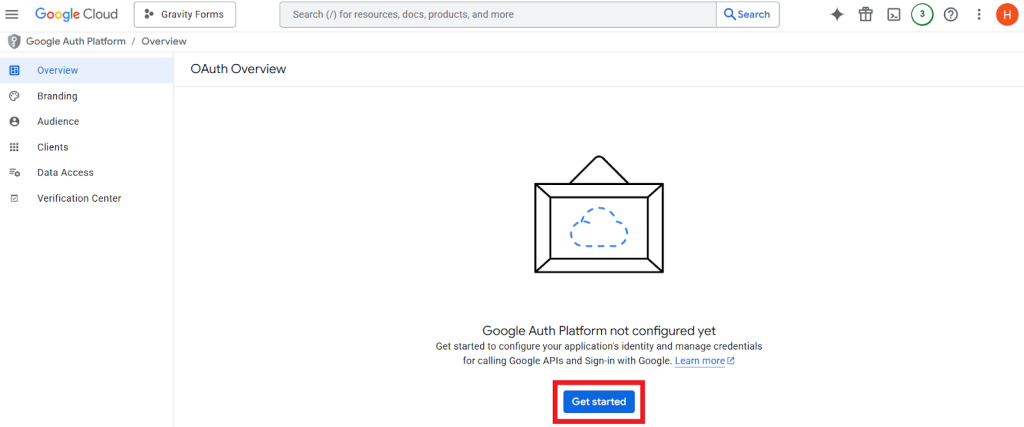
Click on Get Started

Step 13
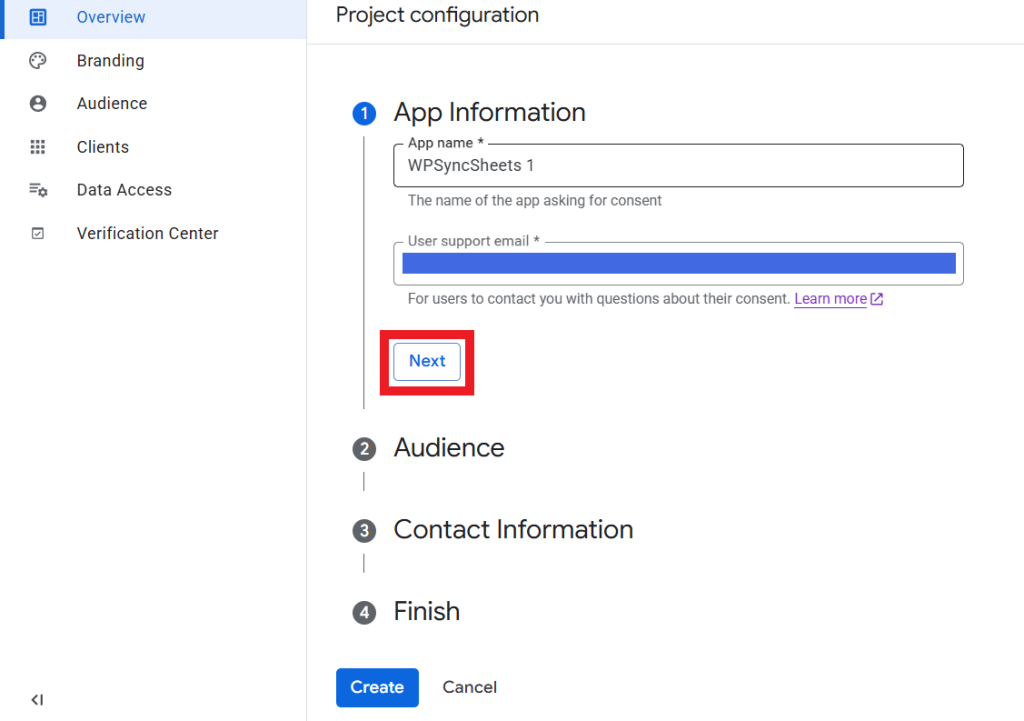
- App Information: Enter the App Name and select the User Support Email, then click Next.

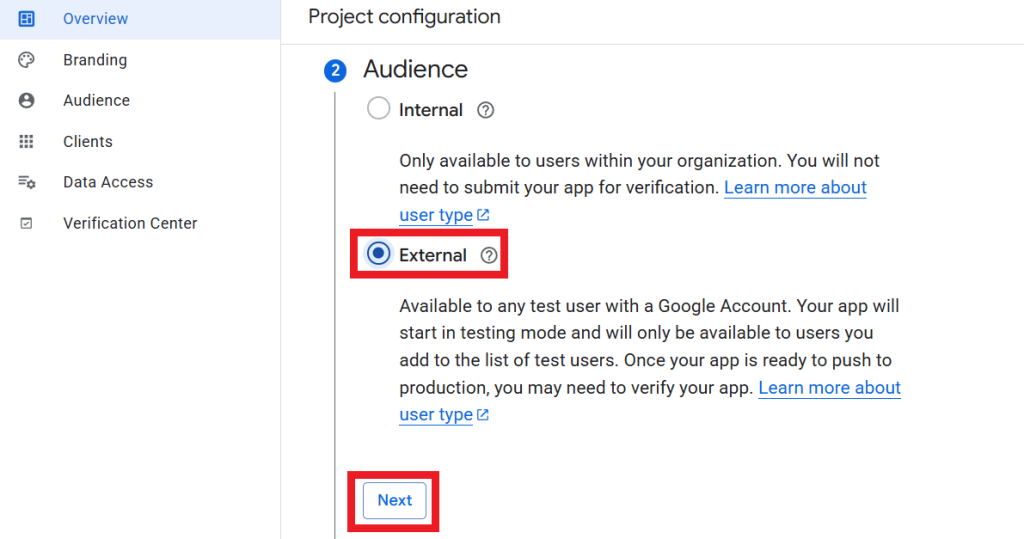
- Audience: Choose External and click Next.

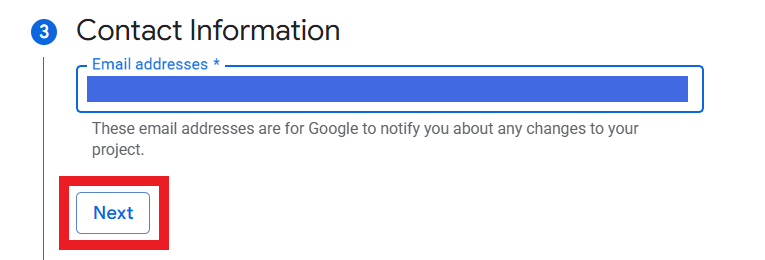
- Contact Information: Enter the Developer Contact Email and click Next.

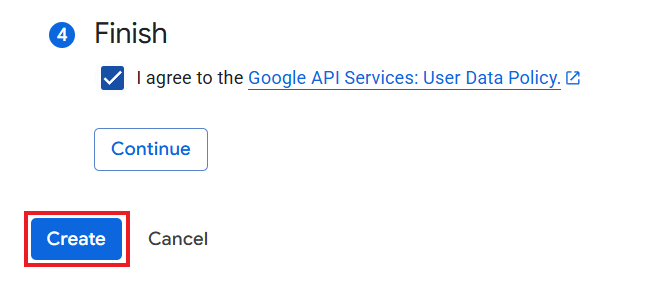
- Finish: Accept the required agreement and click Create.
“Email address” → Developer Contact Email (this is the current Google Cloud field).

Step 14
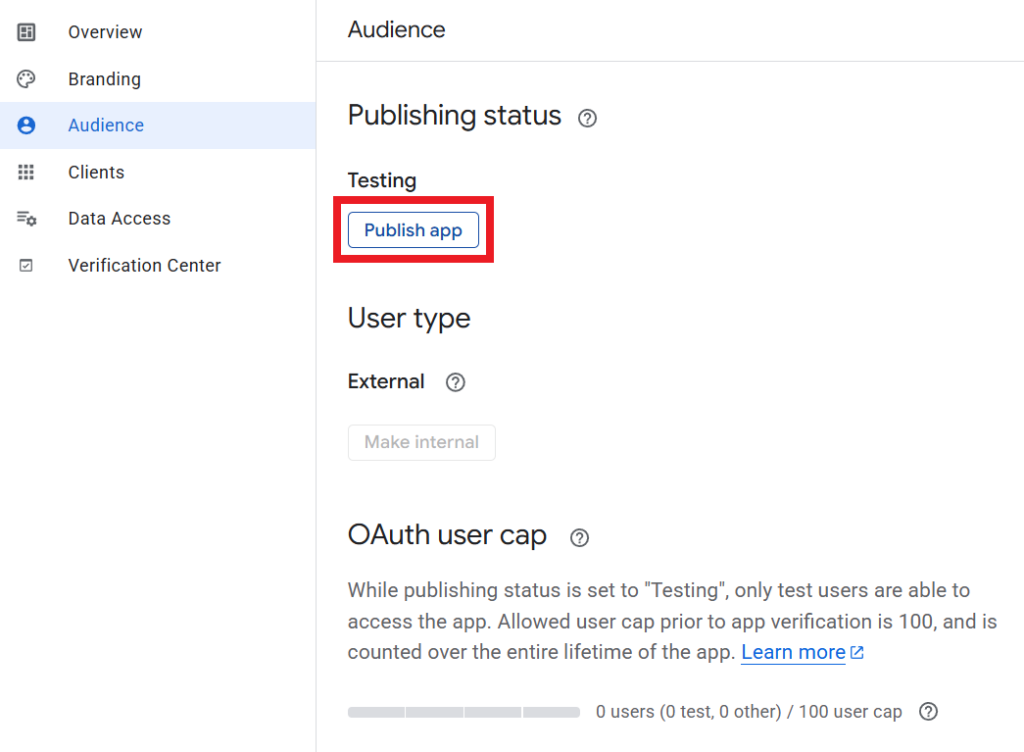
Navigate to Audience, click Publish App, and then click Confirm.

Step 15
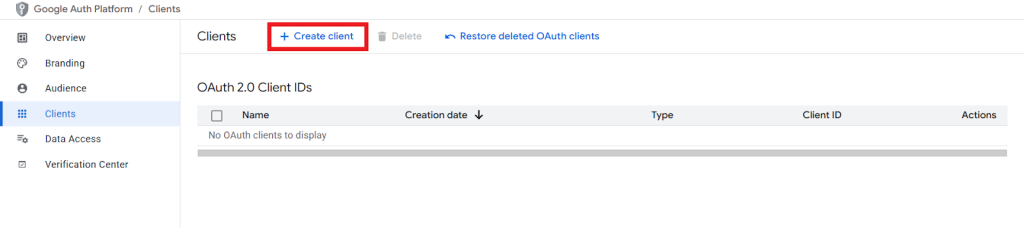
Navigate to Clients and click Create Client.

Step 16
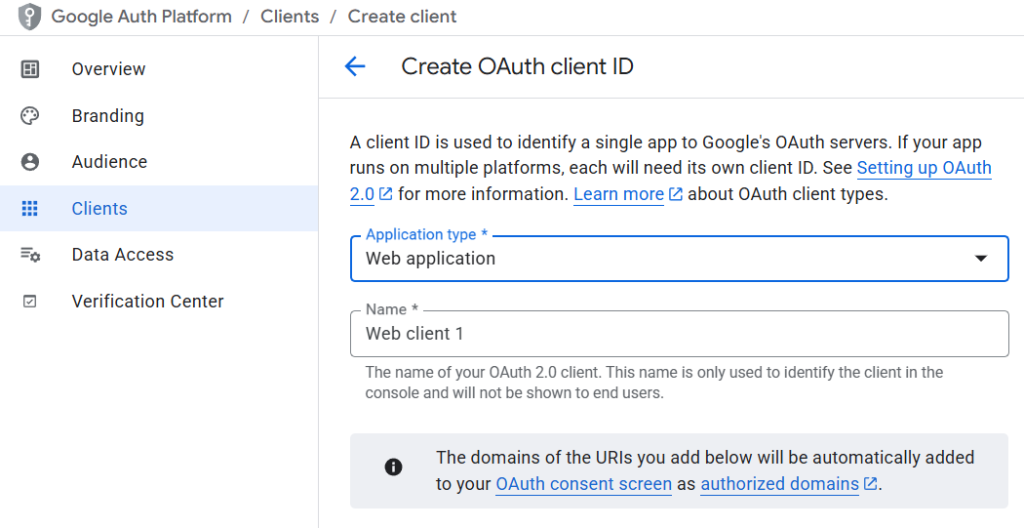
Select OAuth Client ID, choose Web Application as the Application Type, enter a name, and click Create.

Step 17
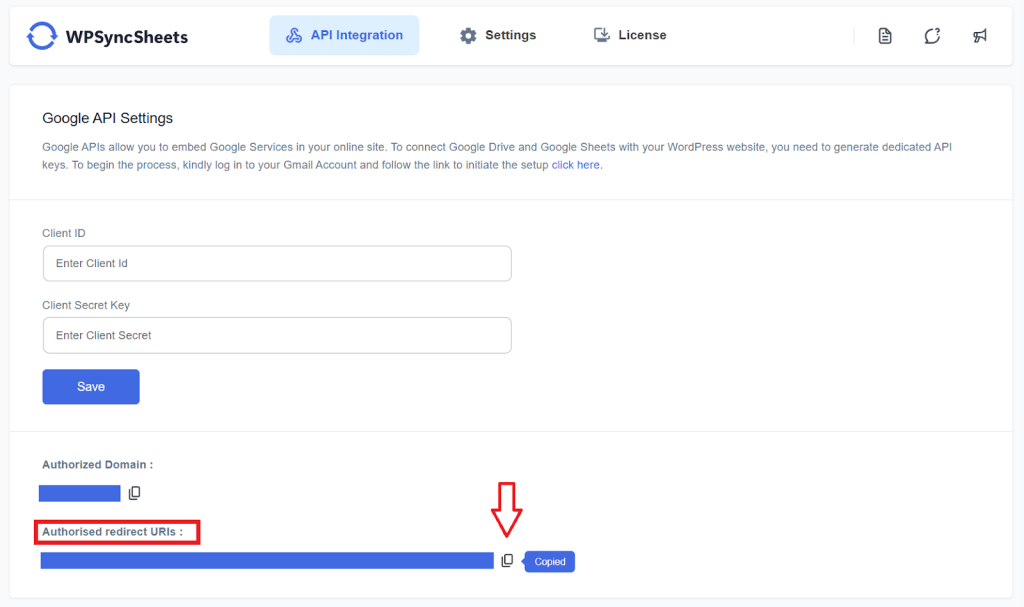
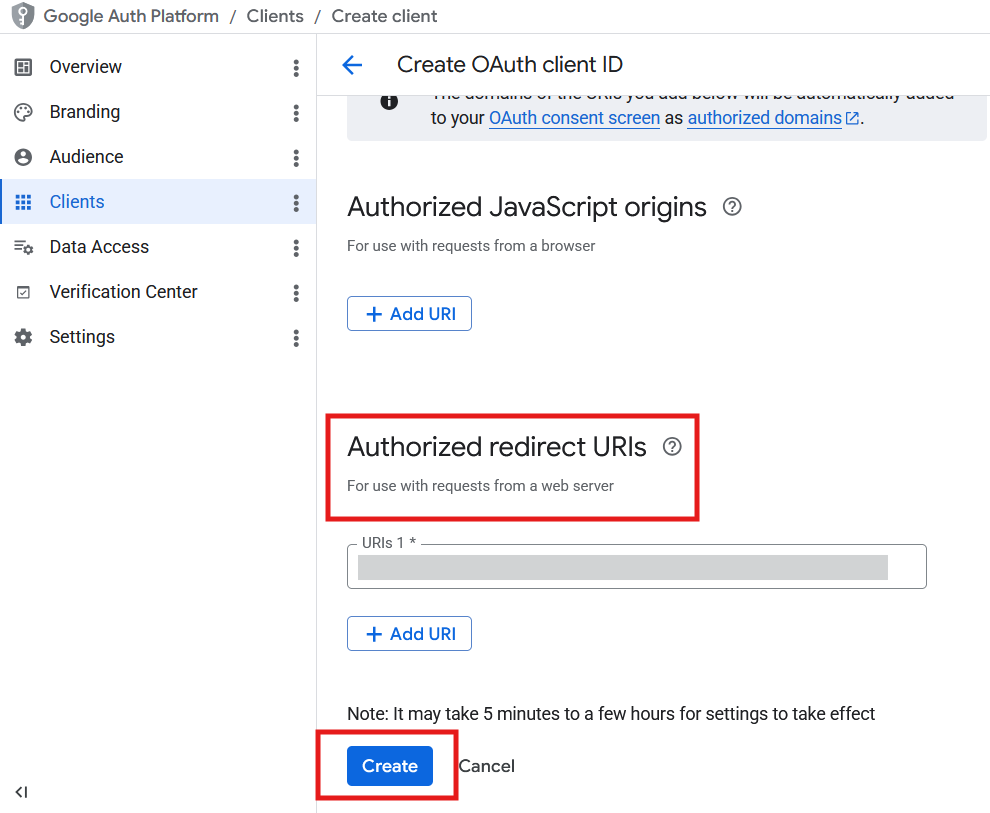
Copy the Authorized Redirect URI from the plugin’s API Integration tab.

Paste it into the Authorized Redirect URIs field and click Create.

Step 18
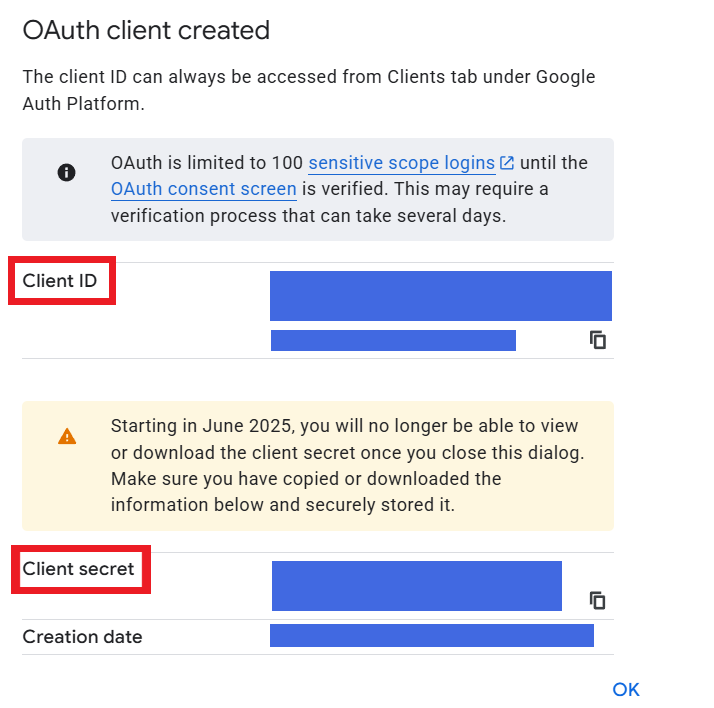
Your Client ID and Client Secret will be generated.

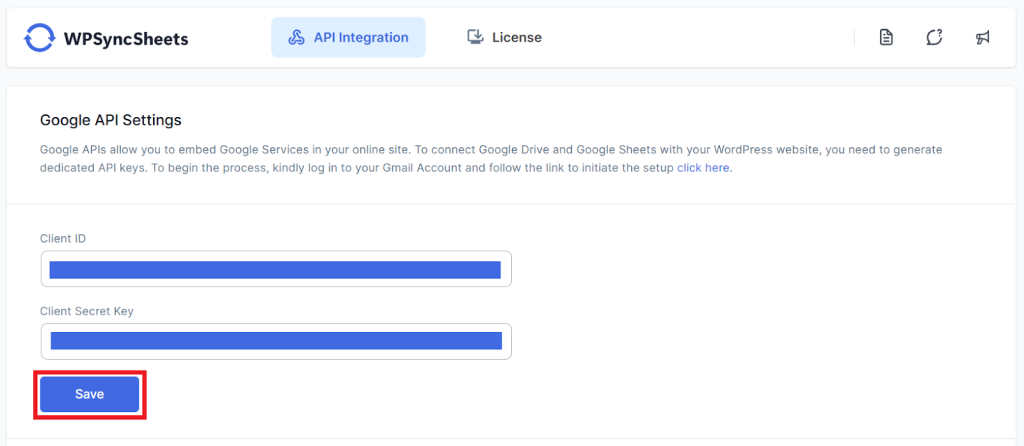
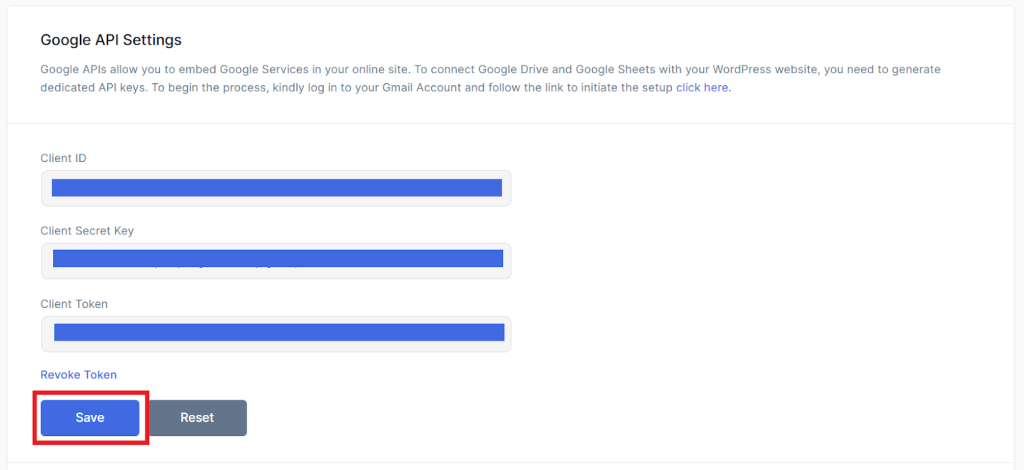
Copy both values and paste them into the plugin’s API Integration tab, then click Save.

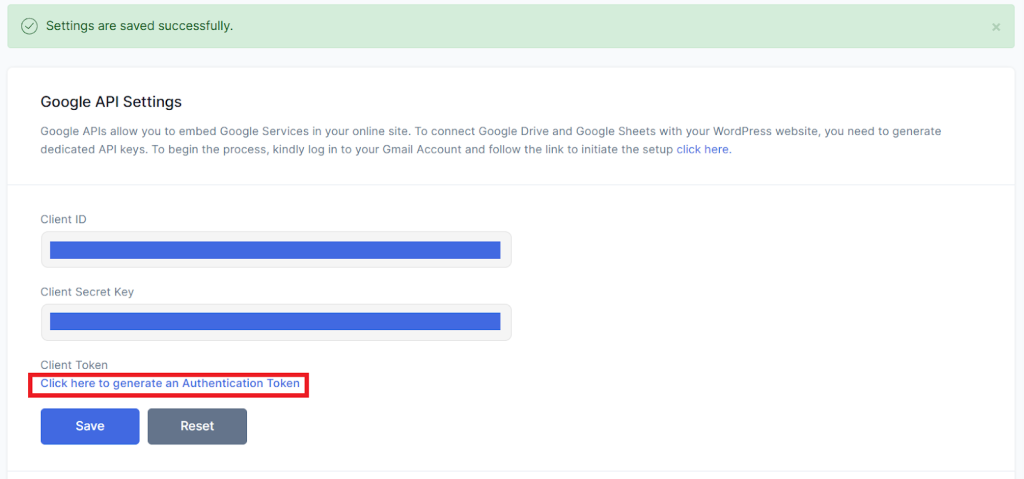
After saving, click Generate Authentication Token.

Step 19
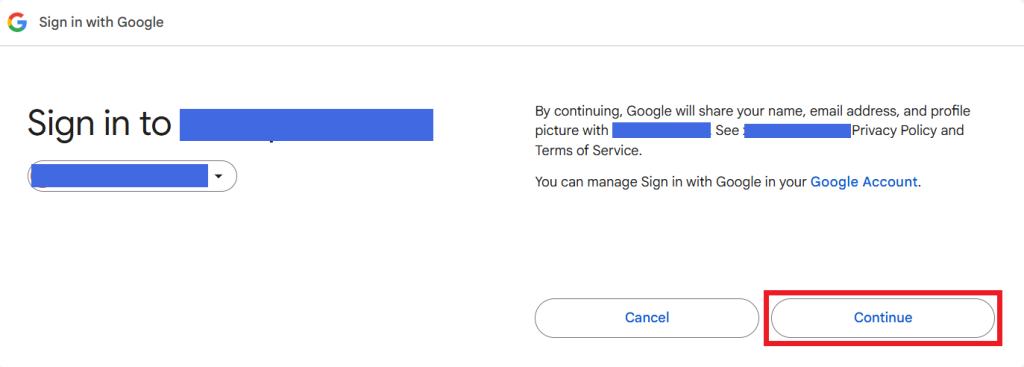
Select the same Google account that was used to create the Client ID and Client Secret.

Step 20
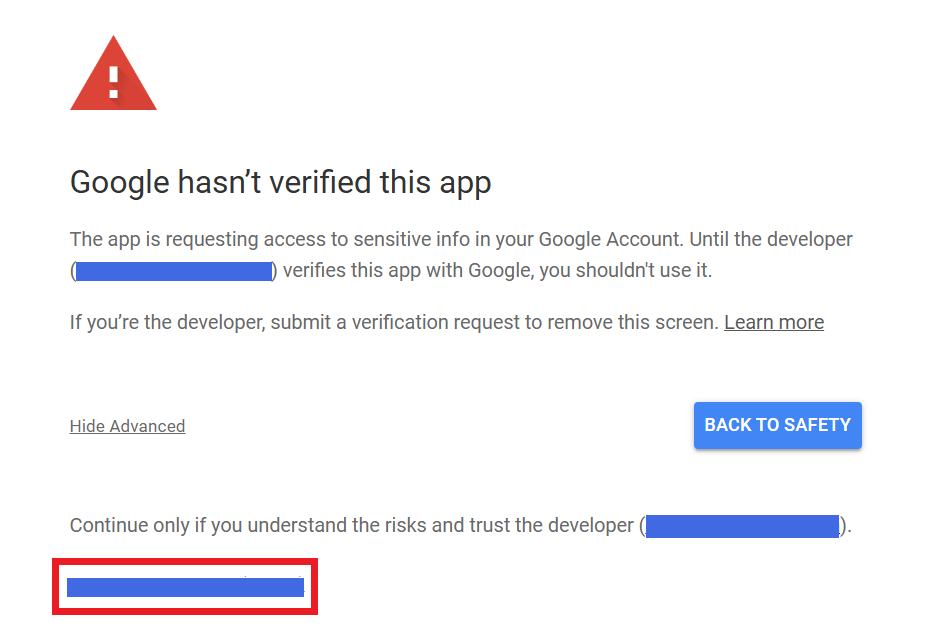
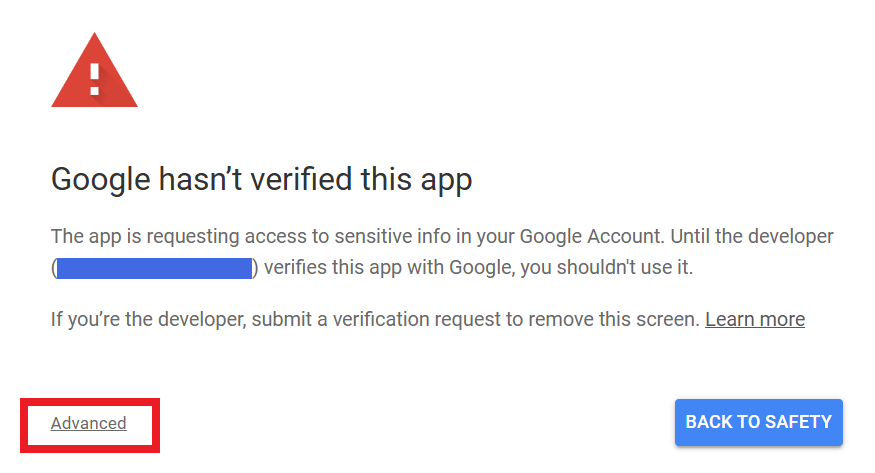
Click Advanced as per the screenshot below.
Step 21
Click Go to Your App Name (unsafe) to continue.

Step 22
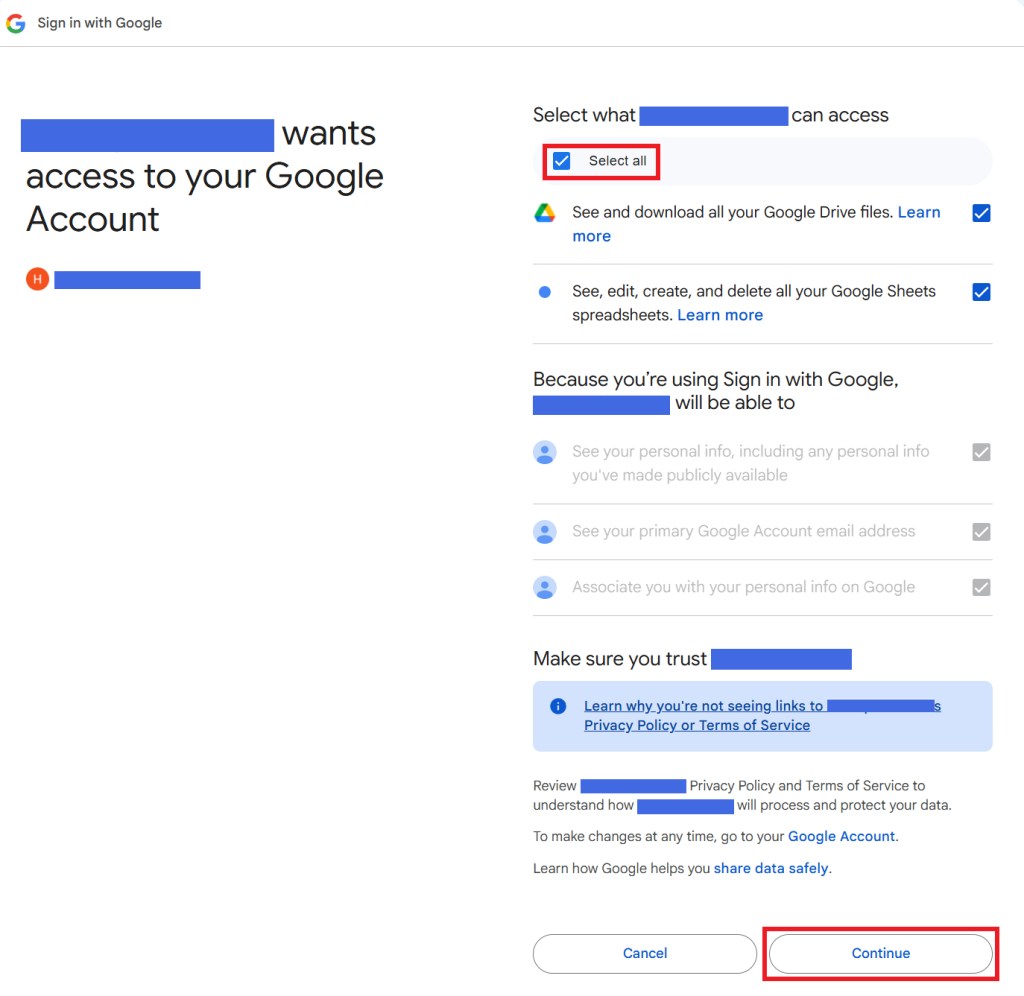
Review the requested permissions, select all required permissions (if prompted), and click Continue.

Step 23
After successful authorization, the Authentication Token will be generated automatically. Click Save to complete the setup.