 Documentation
Ask Your Favorite AI
Copy this article in AI-ready Markdown for ChatGPT, Claude, Gemini, and more.
How to Export Tags?
If users want to export WooCommerce product tags, they can easily sync all tag data from their WooCommerce store into Google Sheets with just one click. This enables real-time access and organisation of tag information. Exporting tags ensures their tagging records stay current and ready for future updates.
Step 1: Enable Import/Export Product Tags
Go to WPSyncSheets → Product Settings → Import/Export Product Tags.

Step 2: Save Settings
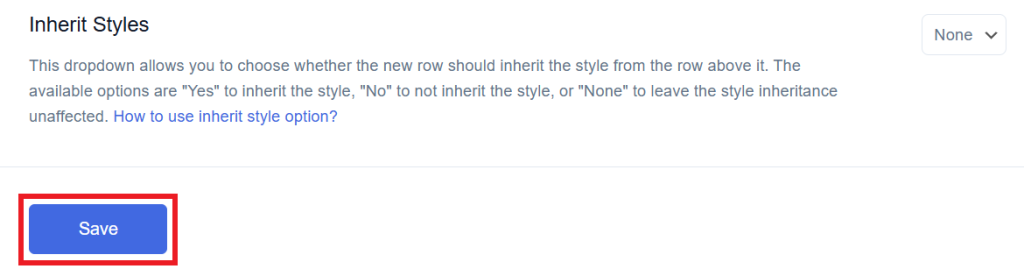
At the end of the page, click on the “Save” button.
Step 3: Click on “View Spreadsheet”
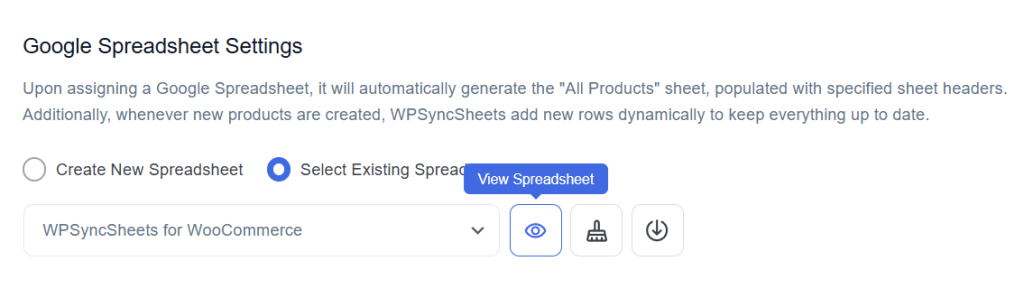
Now click on the View Spreadsheet
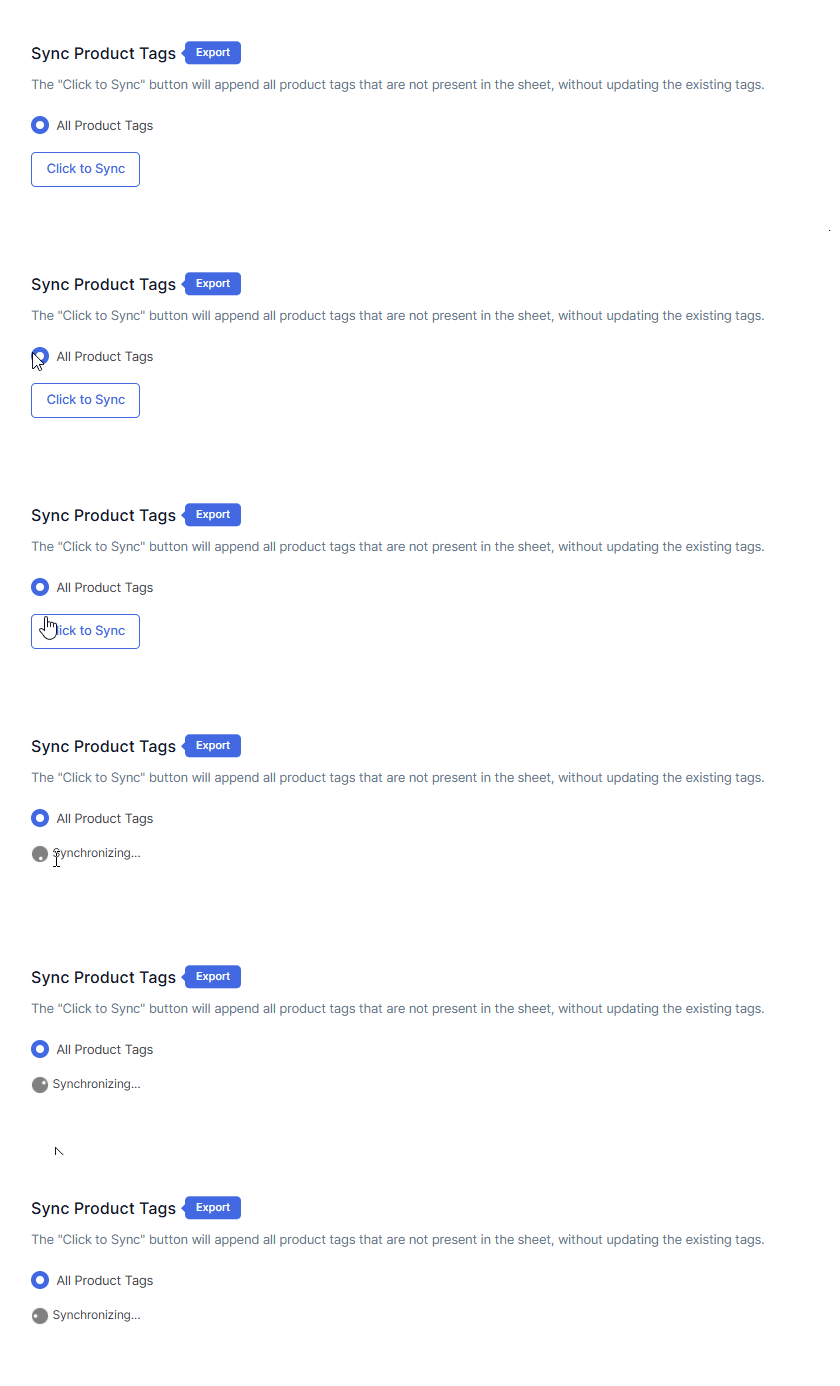
Step 4: Export Product Tags with Click to Sync
Once you save all your settings then it will enable the option called ‘Click to Sync’. Click the button to get your data into the spreadsheet.
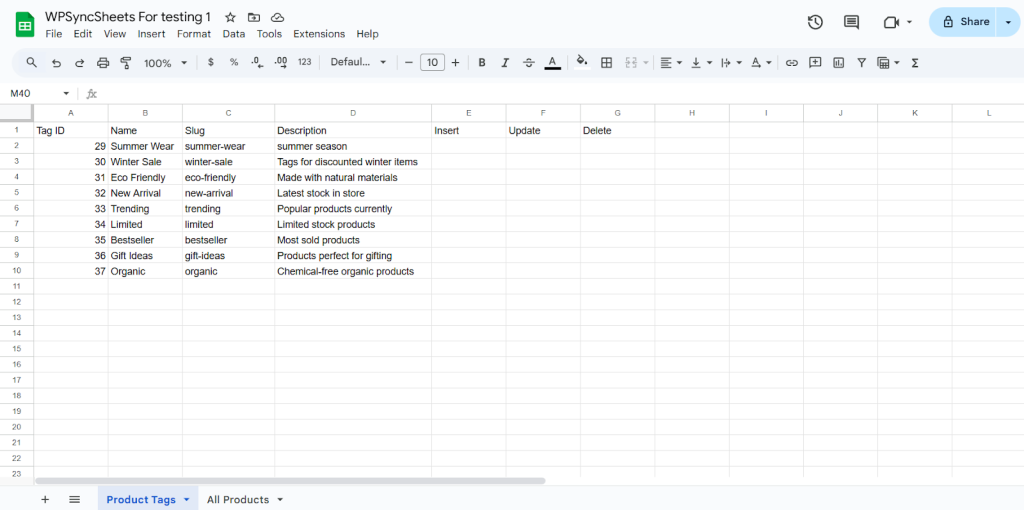
Original Spreadsheet
WooCommerce will provide you with preset sheet headers, so you won’t need to manually maintain or change them.